Margin.
Mark up UI issues on any page, number the details, and hand over a clean review in Google Docs or Word.
Cannot use the Chrome Web Store? Download the zip and install it yourself.
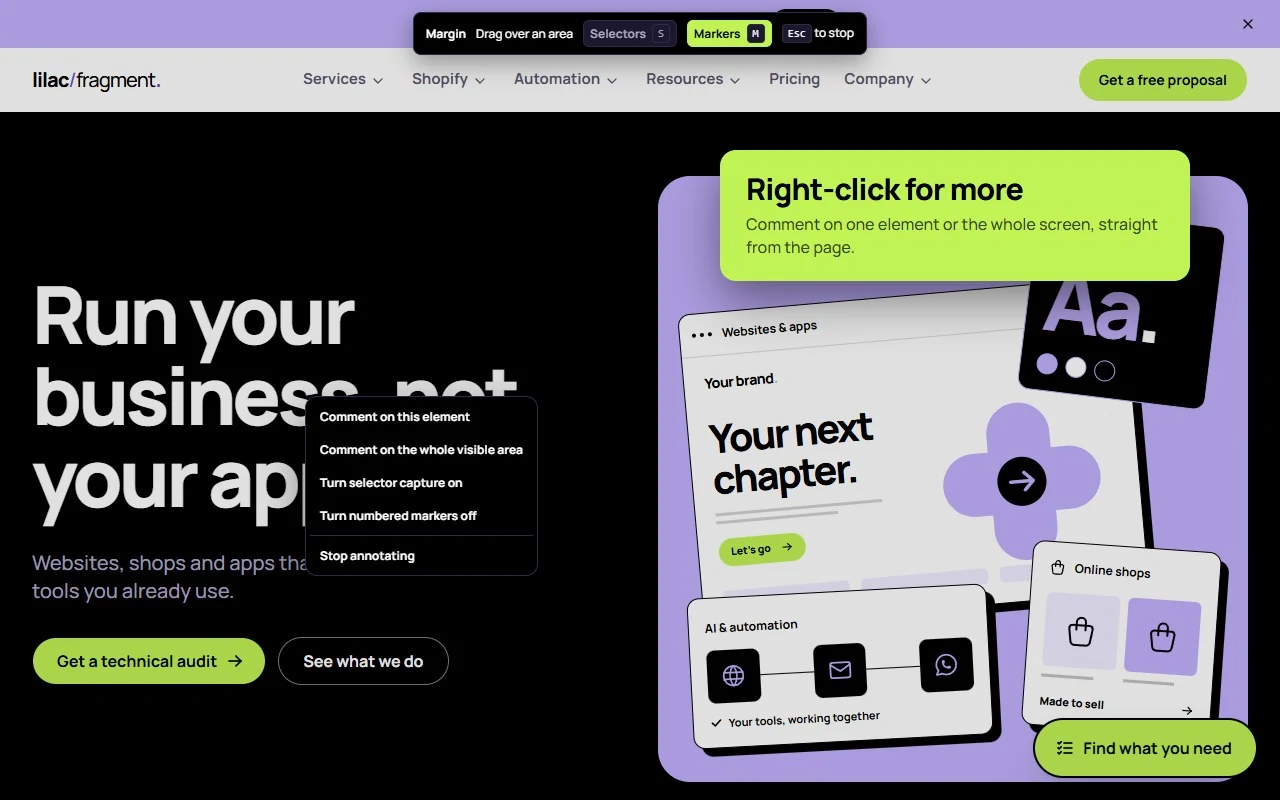
A review in three steps.
Margin lays a sheet over the page you are reviewing. Nothing on the page changes.
Mark what looks wrong.
Start Margin on the page you are reviewing. Drag over anything that looks wrong and Margin takes a screenshot of it.
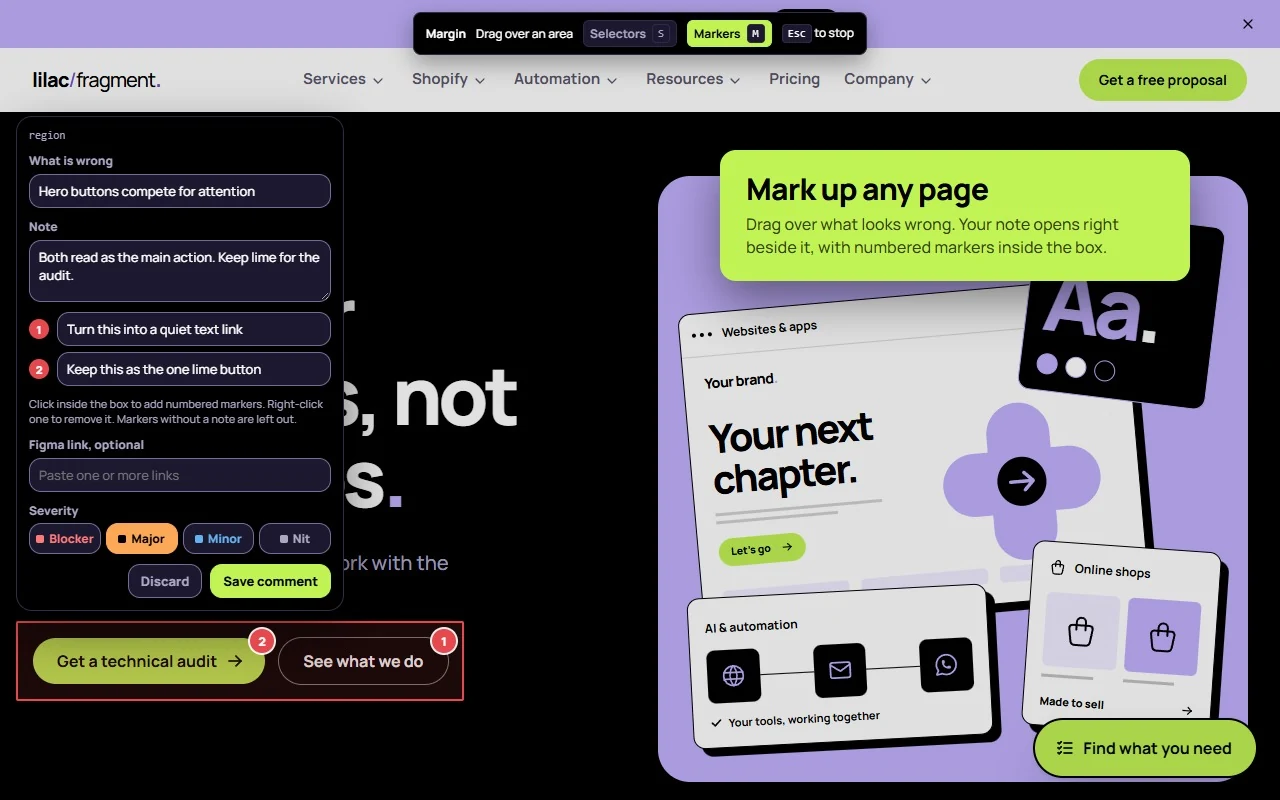
Say why and number the details.
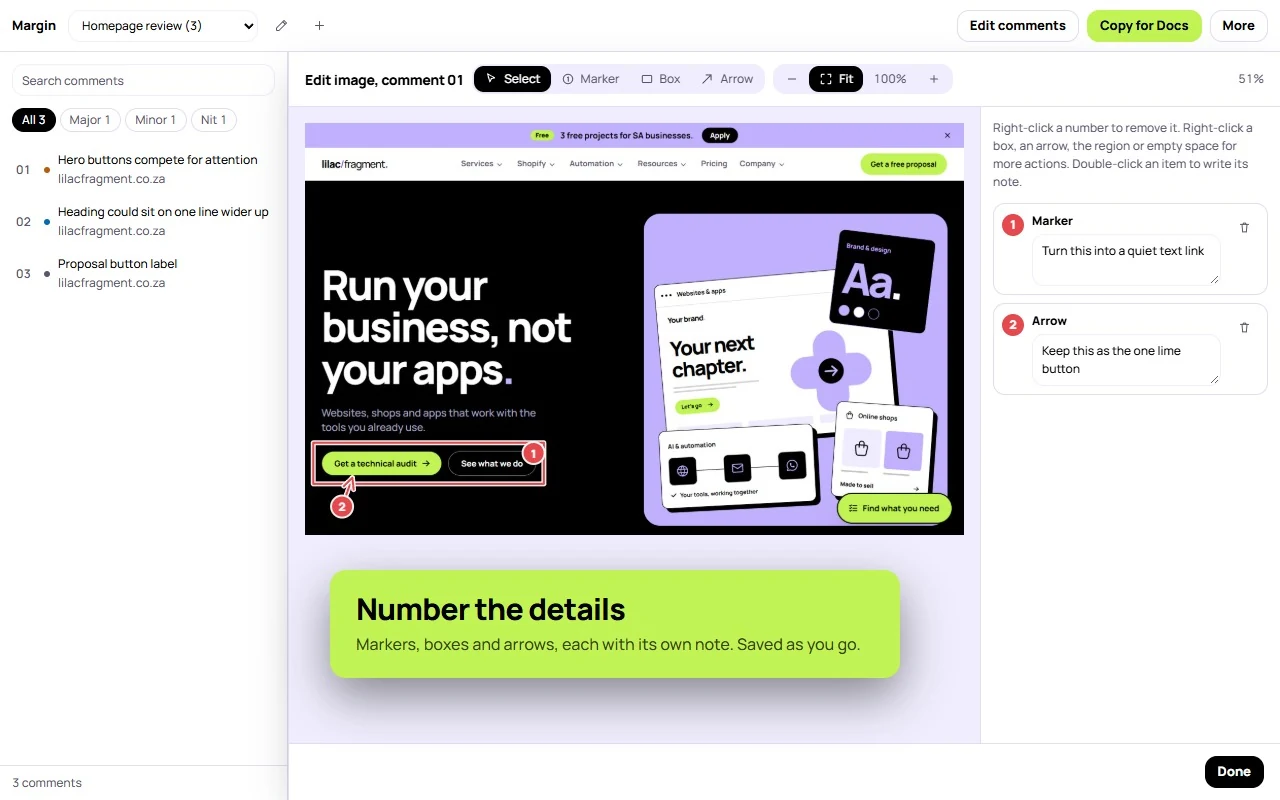
Write what is wrong and pick a severity. Then add numbered markers, boxes and arrows to the screenshot, each with its own note.
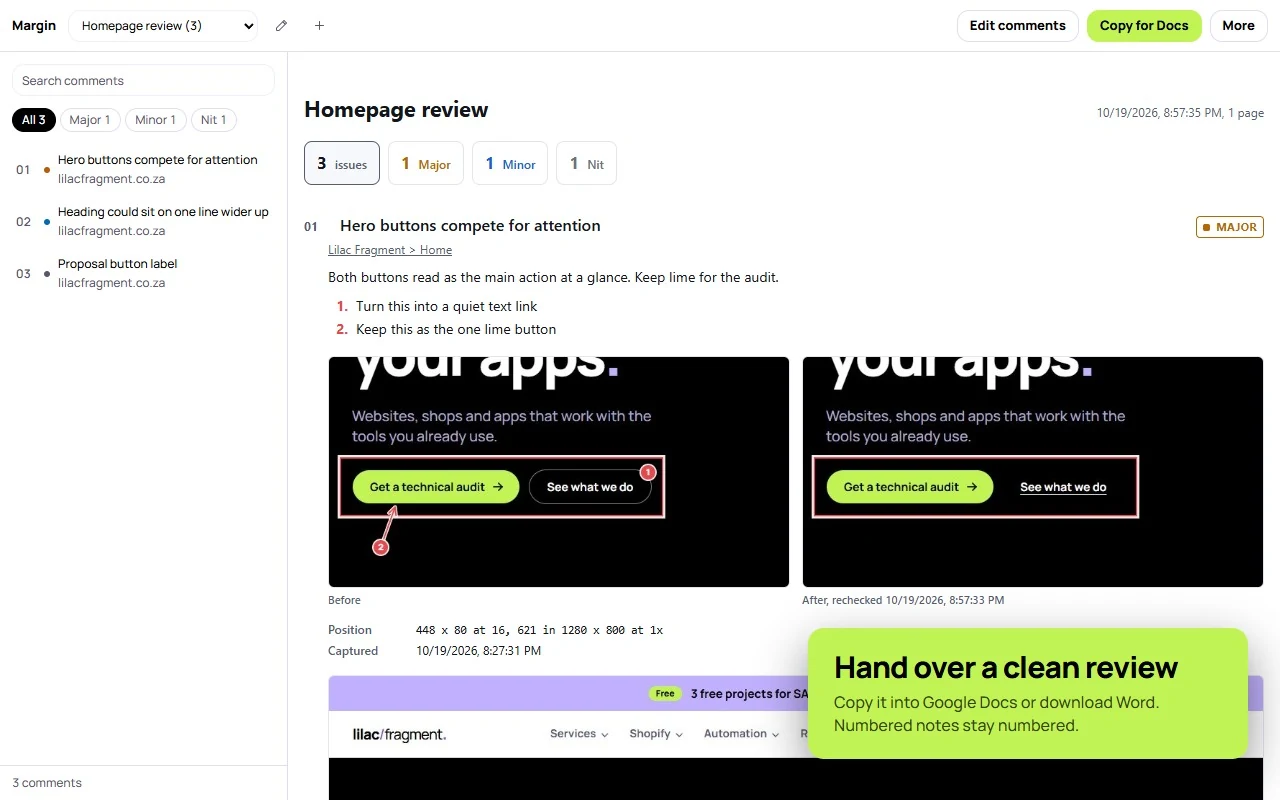
Hand over the review.
Copy the whole review into Google Docs, download it as a Word or HTML file, or send it to Jira or Figma. Verify the fixes on a page in one pass to show each one before and after.
Four severities
Blocker, major, minor and nit, so the team can see what to fix first.
Selectors when you want them
Click an element to keep its CSS selector with the comment. Press S to switch it on or off.
Before and after
Recheck a comment once it is fixed and the report shows both screenshots side by side.
Keyboard first
Press Alt+Shift+A to start and Esc to stop. The editor has shortcuts for every tool.
Your reviews stay on your computer.
Margin keeps comments, screenshots and settings in Chrome. It has no account and no tracking, and a review only leaves your computer when you send it to Jira or Figma yourself.
On the roadmap.
What we plan to build next, in order. Plans can change as we hear from people using Margin.
- Syncing tasks, so a status change in Jira shows in Margin
- Workspaces and shared reviews
- Agent handoff
- Two-way Figma comment sync, with Jira links added to frames as dev resources
- Accessibility check on the selected area
- Off-token check against a design system
- Linear and GitHub Issues export
- MCP server so coding agents can read and close reviews
Questions about Margin.
Ask us on WhatsAppGet a browser extension built for your team.
We build Chrome extensions and plugins around the way your team works.
Or write to us directly